
3D Viewer for Windows: open GLB, FBX and OBJ models directly on your computer
Finding a good 3D viewer for Windows has become a necessity for professionals, students, artists, developers, and anyone who works with three-dimensional objects. 3D models are increasingly present in architecture, engineering, medicine, education, gaming, augmented reality, virtual reality, advertising, and e-commerce projects.
For a long time, users of Microsoft's operating system could rely on the 3D Viewer that came bundled with some Windows 10 installations. However, the application stopped being developed, was not included by default in Windows 11, and was officially discontinued by Microsoft. As a result, quickly opening a 3D file became more complicated than it should be.
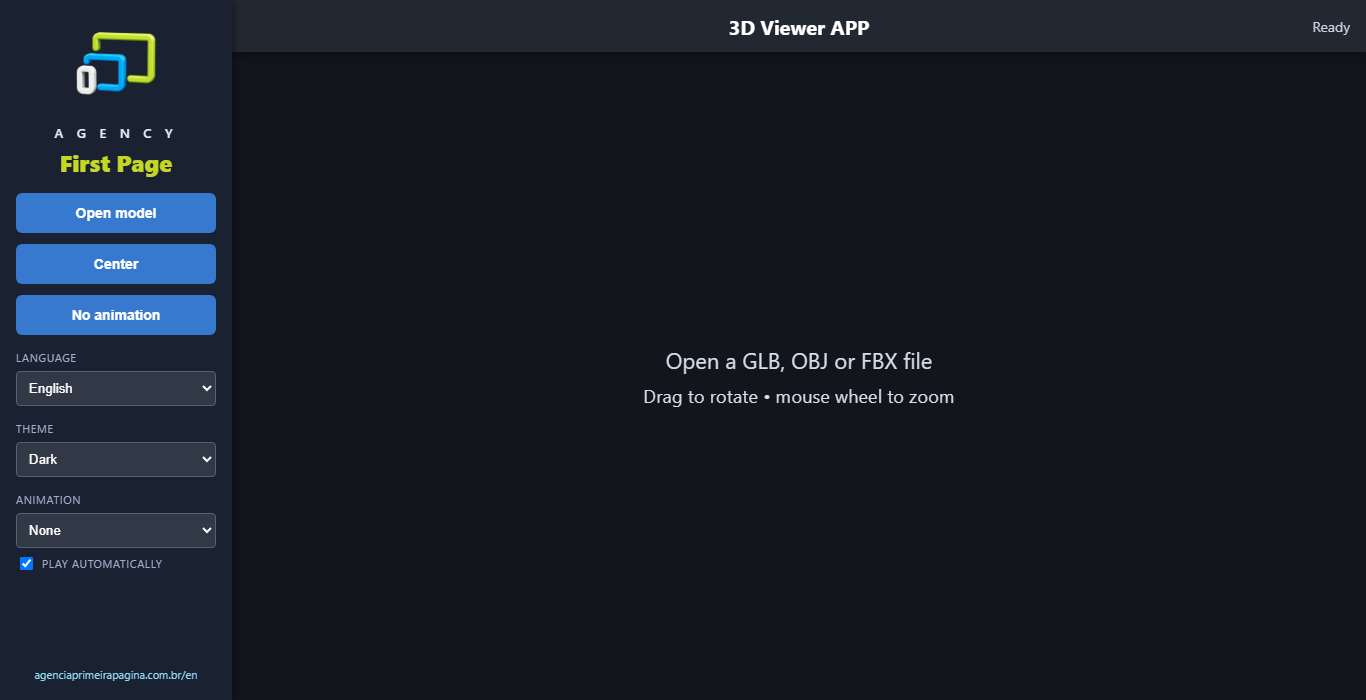
To solve this problem, we developed a simple, fast 3D viewer for Windows built for popular formats such as GLB, FBX, and OBJ. The program lets you inspect three-dimensional models, play animations, view materials, and control the camera without having to open complex modeling software.
What is a 3D viewer for Windows?
A 3D viewer is a program designed to open and display three-dimensional objects interactively. Unlike a regular image, which shows only a fixed angle, a 3D model can be rotated, zoomed, and observed from different positions.
With a 3D viewer for Windows, the user can inspect the front, sides, back, top, and inner details of an object. When the file contains animations, it is also possible to play movements, such as an insect in flight, a machine in operation, a walking cycle, or the movement of a human organ.
The goal is not to replace creation programs such as Blender, Maya, 3ds Max, or Cinema 4D. Those tools are built for modeling, sculpting, animating, and rendering. A viewer, on the other hand, prioritizes convenience: open the file and quickly check the result.
Why build a new 3D viewer?
Microsoft announced the discontinuation of its former 3D Viewer in February 2026. The program will be removed from the Microsoft Store on July 1, 2026. Existing installations may still work, but the application will no longer be available for new downloads from the store.
The old program was pre-installed on some computers running Windows 10, but was not part of the standard Windows 11 installation. This change left many users without a straightforward option for opening three-dimensional files.
Anyone who simply wants to inspect a model should not need to install a professional tool packed with editing features. It was precisely from this need that our 3D viewer for Windows was born: to offer a direct way to open models, test materials, check animations, and navigate the scene.
Which formats does the 3D viewer support?
Three-dimensional formats can store different types of information. Some hold only geometry, while others include materials, images, animations, skeletons, and scene settings.
GLB files
GLB is the most recommended format for distributing ready-to-use 3D models. It can bundle geometry, materials, textures, animations, and other information into a single file.
This characteristic reduces issues with missing images or broken references. Instead of sending a folder with multiple files, the creator can deliver just one GLB.
Our 3D viewer for Windows uses Babylon.js as its graphics engine to interpret GLB files. This enables the display of PBR materials, transparency, embedded textures, hierarchies, bones, skinning, and animations.
PBR stands for "physically based rendering." This system combines information such as color, roughness, and metallic properties to produce a more realistic appearance under different lighting conditions.
FBX files
FBX is widely used in animation, gaming, and audiovisual production. It can contain meshes, materials, skeletons, and motion data, but is not interpreted directly by Babylon.js.
To support FBX, we included an automatic conversion process. When the user selects this format, the application uses a local converter to temporarily generate a GLB version. The converted file is then loaded by the graphics engine.
The entire procedure happens in the background. The user does not need to know any commands, configure external programs, or manually convert the file before viewing it.
The quality of the result depends on how the original FBX is organized. Proprietary materials from certain programs may not have exact equivalents, but geometry, standard textures, and animations are typically transferred successfully.
OBJ and MTL files
OBJ is one of the most established formats for exchanging three-dimensional geometry. It is simple, widely supported, and well suited for static objects.
An OBJ file is normally accompanied by an MTL file, which describes the materials. The images used as textures are stored separately as PNG or JPG files.
To open an OBJ correctly, it is important to keep the following elements in the same folder:
- The model with the .obj extension;
- The material file with the .mtl extension;
- The texture images referenced by the material.
When these files are separated, renamed, or removed, the geometry may appear white or without texture maps. The 3D viewer for Windows automatically looks for the MTL file and the textures referenced by the OBJ.
Key features of the 3D viewer for Windows
The application was built to make navigation straightforward, even for users who have never worked with a 3D program.
Free model rotation
To view another angle, simply click on the three-dimensional viewport and drag the mouse. The camera orbits around the object, allowing a complete inspection.
This feature is useful for evaluating products, characters, mechanical parts, furniture, buildings, organs, vehicles, and virtually any three-dimensional representation.
Quick zoom with the mouse wheel
The mouse wheel controls the camera distance. Scrolling in one direction zooms in; scrolling in the opposite direction zooms out.
The sensitivity is configured to produce a noticeable change with each movement. This allows the user to navigate quickly between an overview and finer details of the model.
Automatic centering
3D models can have very different scales. A piece of jewelry may measure just a few millimeters, while a building may span hundreds of meters in virtual space.
When a file is loaded, the application calculates the geometry's bounds, finds its center, and adjusts the camera accordingly. The "Center" button can be used at any time to restore the initial framing.
Animation playback
When a GLB or FBX file contains animations, the program identifies the available groups and starts playback automatically.
A list at the bottom of the screen allows the user to select different motions. It is also possible to pause and resume the animation. This makes it easy to review characters, creatures, mechanisms, scientific demonstrations, and educational presentations.
PBR materials and textures
Using Babylon.js makes it possible to display modern materials in real time. The model can use base color, metallic properties, roughness, transparency, emissive maps, and normal maps, depending on the data present in the file.
Ambient lighting helps reveal metallic surfaces and material variations without requiring the user to configure a full scene.
Local operation
Once installed, the program keeps its main components on the computer. Models do not need to be uploaded to an online service to be viewed.
This is especially useful for confidential projects, unpublished files, prototypes, industrial parts, or client-owned materials.
How to use the 3D viewer for Windows
The process is designed to be quick.
1. Install the application
Run the Visualizador 3D APP installer. The program will be copied to the user profile and a shortcut will be created on the Desktop.
The application includes all components required for its operation. It also uses Microsoft Edge WebView2, a technology based on the Edge browser, to display graphic content inside a native window.
2. Open the program
Click the "Visualizador 3D APP" shortcut. The main window will show the viewing area, camera controls, and animation options.
3. Select the model
Click "Open model" and choose a compatible file.
For the most reliable experience, we recommend GLB. Because it can store all information in a single package, there is less risk of missing textures or materials.
If you choose an OBJ, keep the MTL file and images in the same folder. When selecting an FBX, wait a few moments while the application performs the automatic conversion.
4. Navigate the scene
Click and drag to rotate. Use the mouse wheel to zoom in or out. If you lose the object from view, press "Center".
If the model has animations, use the bottom list to select one. The "Pause" and "Play" buttons control playback.
Who is the viewer for?
The 3D viewer for Windows can be used in a wide range of contexts.
Architecture and design professionals can review furniture, environments, and decorative elements. Game developers can inspect characters and objects before importing them into an engine. Teachers can present scientific and historical structures in an interactive way.
Online stores can verify product models intended for 3D or augmented reality experiences. Artists can review materials and animations. Agencies can show prototypes to clients without requiring them to install creation tools.
In the medical field, anatomical models help explain structures that would be difficult to understand from flat images. In industry, three-dimensional parts allow proportions, joints, and components to be observed from different angles.
How was the application developed?
The main interface was built as a Windows application using .NET and WPF. Inside the window, Microsoft Edge WebView2 runs a graphical interface based on web technologies.
Babylon.js handles the rendering. It interprets GLB files, builds the scene, applies materials, sets up lighting, and plays animations. An orbital camera allows rotation around the model and distance control via the mouse wheel.
For FBX, FBX2glTF was integrated. The converter transforms the file into GLB before viewing. For OBJ, the application makes local files available to the graphics engine, allowing it to locate the MTL file and associated textures.
An automatic framing system was also created. After the model is loaded, the program calculates the bounding box of all meshes, finds the center point, and determines an appropriate camera distance.
Which 3D format should you choose?
For sharing a finished object, GLB is generally the best choice. It brings together the main features in a compact file and is widely used on the web, in applications, augmented reality, and interactive experiences.
FBX remains important during production, especially when animations, skeletons, or integration with professional tools are involved. OBJ is a good alternative for static models and has a structure that is easy to understand.
Regardless of the format, verify that textures have been embedded or sent alongside the model. A viewer cannot recover an image that is neither present in the file nor in the specified folder.
A practical replacement for the former 3D Viewer
With the discontinuation of Microsoft's solution, having a dedicated alternative has once again become important. Our 3D viewer for Windows was developed to fill that gap with a straightforward experience: open, rotate, zoom, inspect materials, and play animations.
The program is suitable for both beginner users and professionals who need to quickly review a project without opening a full editing tool.
If you are looking for a 3D viewer for Windows that supports modern formats and is ready for animated models, try Visualizador 3D APP. Open your file, explore every detail, and view your three-dimensional projects directly on your computer.