
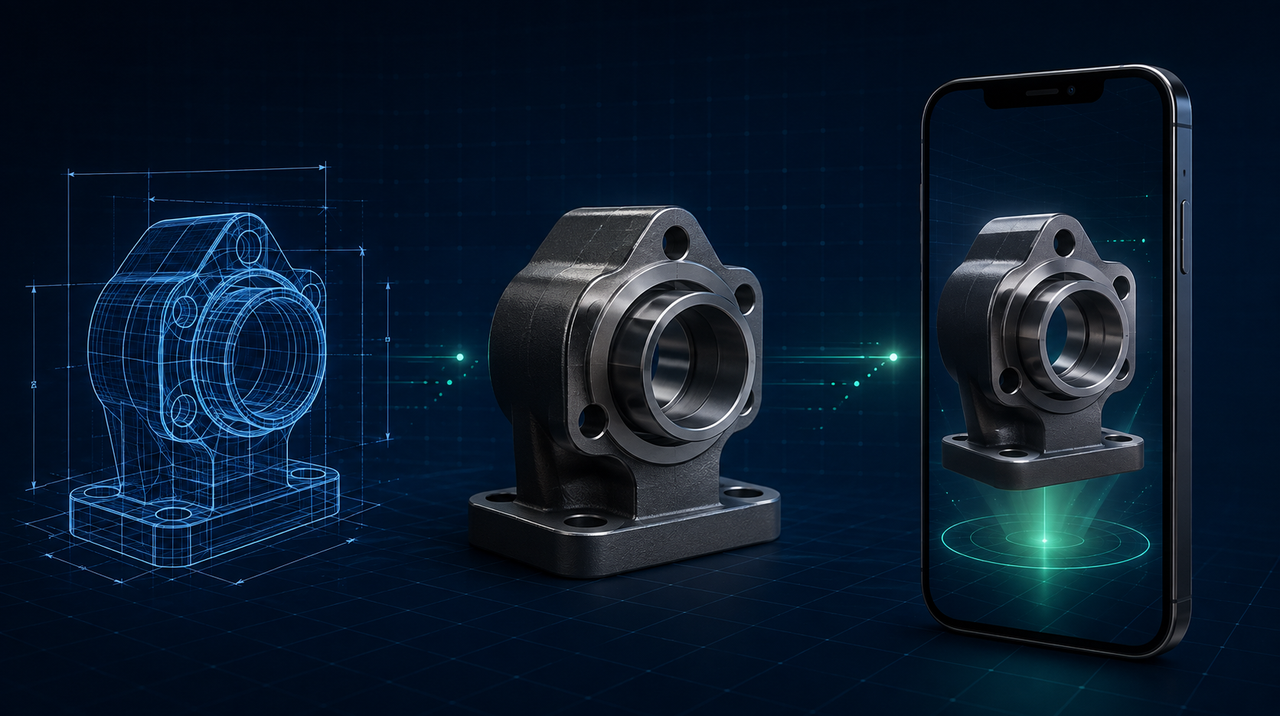
No browser opens a STEP file. Not Chrome, not your client's phone, not the augmented reality viewer. For a project to leave CAD and become something anyone can spin around on their phone screen, it has to be converted into GLB — and it's in that conversion that the part usually bloats, loses its color, or turns into an unrecognizable gray block.
This guide is the path we used on a real 45.6 MB industrial assembly, exported from Creo Parametric, with the numbers measured at each step.
Why STEP doesn't open in the browser
The difference isn't one of format, it's one of nature. A CAD file like STEP (.stp) or IGES stores the part as mathematical geometry: surfaces, curves, fillet radii. That's why you can change a dimension and the whole part adjusts.
The web, on the other hand, works with mesh: triangles. The browser doesn't solve surface equations, it draws triangles. Converting CAD for the web, then, isn't "save as" — it's tessellation, that is, deciding into how many triangles each curved surface will be sliced. That decision is what separates a model that opens on a phone from one that freezes the device.
Tolerance is the dial nobody shows you
Every CAD converter has two parameters that almost no interface exposes: linear tolerance (how far the mesh can deviate from the original surface) and angular tolerance (how much it can "break" on a curve).
- Too tight: fidelity is perfect and the file comes out with millions of triangles — beautiful on the engineer's computer, impossible on the buyer's phone.
- Too loose: the file stays light and the cylinder turns into a faceted prism. On a machined part, that jumps out immediately.
On the assembly we converted, a linear tolerance of 0.1 and an angular tolerance of 0.5 struck the balance: 45.6 MB of STEP became 17.1 MB of GLB in 31 seconds, with 427 parts and around 490,000 vertices preserved. There's no universal number — there's testing two values and looking at the most curved part in the set.
What you lose along the way: appearance
This is the surprise that trips up most projects. We opened the converted GLB and it came with 427 parts and zero materials. No conversion error: the nice color you see in Creo, SolidWorks, or Inventor belongs to the viewer, not the file. STEP carries geometry, not appearance.
The result is the uniform gray model, where nobody can tell what's aluminum, what's acrylic, and what's cable. And here's the shortcut that saves days of work: the part names tell you what they are. On an electronics assembly, the names carried the LED board, the window acrylic, the light guide, the 16 AWG AC cable, the thermal pad. You can assign material by name pattern and solve an entire assembly with seven materials, instead of painting 427 parts by hand.
One caveat worth its weight in gold: use only simple metallic-roughness materials. Old-style specular-glossiness material and WebP textures make the model appear white in augmented reality — the full reason is in GLB, OBJ, FBX, or STL: which 3D format to use.
Weight: from 45 MB to 1.7 MB without losing the part
The 17.1 MB from the conversion is still a lot for someone opening it on 4G. Mesh compression solves this: with Draco, the same model dropped to 1.7 MB — and Draco compression is read normally by augmented reality on both Android and iPhone, animation included.
A real pitfall: command-line optimizers often group materials into a single palette to save draw calls. When that happens, all the colors turn metallic white, and you only discover it by checking the materials on the loaded model. If your model came out white after being "optimized," suspect this before redoing the conversion.
Convert in the browser or on the server?
We tested both routes with the same 45.6 MB file. In the browser, using WebAssembly, the conversion is possible — and slow:
- On the server: 31 seconds.
- In the browser: 239 seconds (practically 4 minutes), with 179 MB of memory and the page frozen during the process.
Hence the rule we adopted, which holds for any workflow: mesh (STL, OBJ, FBX, DAE, PLY) converts in the browser, where it's fast and the file doesn't even need to leave the person's computer; CAD (STEP, IGES) converts on the server, because 31 seconds versus 4 minutes decides whether the client waits or gives up.
Scale and assembly: check before you show it
STEP files usually come in meters, and that's the unit that keeps the part from showing up the size of a building when it opens on a phone. Check the converted model's dimensions against the project's spec before sending it to anyone — it takes a minute and avoids the embarrassing conversation.
The same distrust applies to third-party files: we once received a package where the same car had a correct FBX version and a broken DAE version, with parts scattered and 15 meters in length where there should have been 4.4. When the assembly looks strange, measure it — don't trust the viewer.
Checklist before publishing the model
- The GLB opens on a phone, not just on a computer.
- The dimensions match the project's spec.
- The materials exist and are metallic-roughness (no specular-glossiness, no WebP texture).
- The final file is a few megabytes, not dozens.
- The curved parts aren't faceted.
- If it's for iPhone, a USDZ version also exists — Android opens from the GLB, iPhone doesn't.
Where to convert and when it's worth hiring help
For a quick test, our 3D file converter is free and accepts STEP and IGES in addition to mesh formats: mesh files are processed right in the browser, and CAD goes to the server, precisely because of the time difference shown above.
Now, if the goal is a catalog-quality model — correct materials, an animated part opening and closing, an exploded assembly, the product spinning on the page or appearing in the client's space in augmented reality —, conversion is just the first step. That finishing work is done through 3D modeling and animation, and it's what turns an engineering file into a sales piece.
Perguntas frequentes
Can you open a STEP file directly in the browser?
No. Browsers draw meshes (triangles) and STEP stores mathematical geometry. It has to be converted to GLB, the format read natively by the web and by augmented reality.
How long does it take to convert a STEP file to GLB?
It depends on where the conversion runs. In our test with a 45.6 MB assembly, the server took 31 seconds while the same file converted inside the browser took 239 seconds, with the page frozen during the process.
Why does the model converted from CAD come out all grey?
Because a CAD file does not carry appearance: the colour you see in Creo or SolidWorks belongs to the viewer. The assembly we converted arrived with 427 parts and no materials at all. The practical fix is to assign materials by part-name pattern.
Which tolerance should I use for the conversion?
There is no universal value. A tight tolerance produces millions of triangles that choke a phone; a loose one leaves curves faceted. On a real industrial assembly, 0.1 linear tolerance and 0.5 angular gave a good balance.
Can a CAD model be viewed in augmented reality?
Yes, once converted to GLB and reduced in weight. Android opens straight from the GLB; the iPhone also needs a USDZ version. Draco compression is accepted by both.
What is the maximum acceptable size for a model on the web?
A few megabytes. The assembly in our example went from 45.6 MB of STEP to 17.1 MB of GLB and down to 1.7 MB with Draco compression, which is the range where the model opens fast on 4G.